If you have questions about any of these items please do not hesitate to contact Trackmax Support at support@trackmax.com at 239-540-9200.
Release Notes version v20.12.17 - 12/17/2020
Release Notes version v5.3.6 - 08/15/2020
Release Notes version v5.1.4 - 08/08/2020
Users can now edit bad records directly within Trackmax. After opening Import Statistics and choosing “Show Bad Records” at the bottom, users will see an “Edit Mode” option while viewing the bad records. This allows the user to make corrections to values on each bad record and then create a new text file that can be sent to the FTP site and imported back into Trackmax.
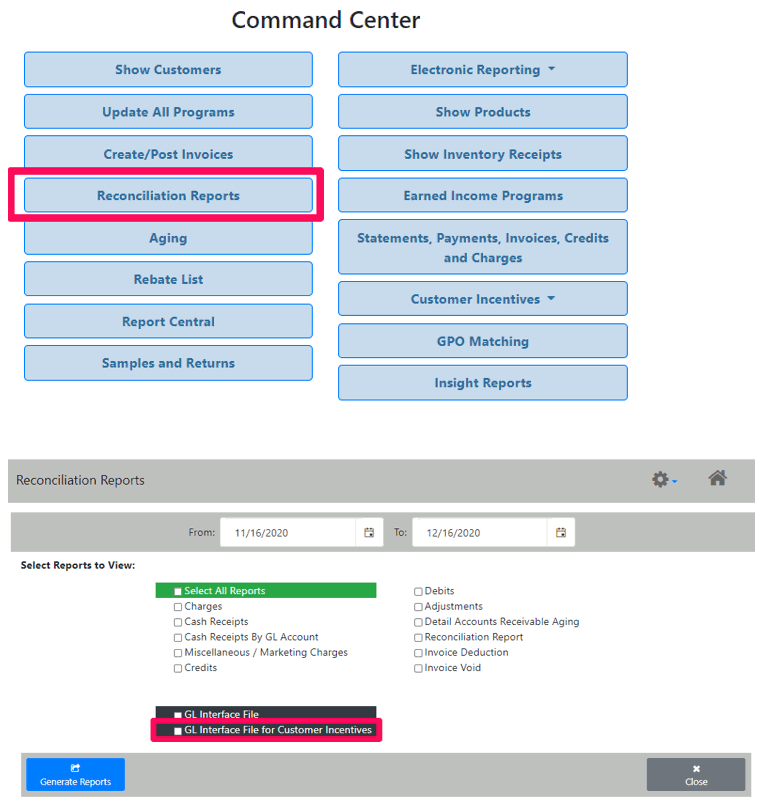
For those using the add-on module, Customer Incentives, a GL Interface file is now available to transfer data regarding payments back to your ERP system. It is accessible from the Reconciliation Reports section and allows users to enter a date range to generate the file on demand and moving forward.
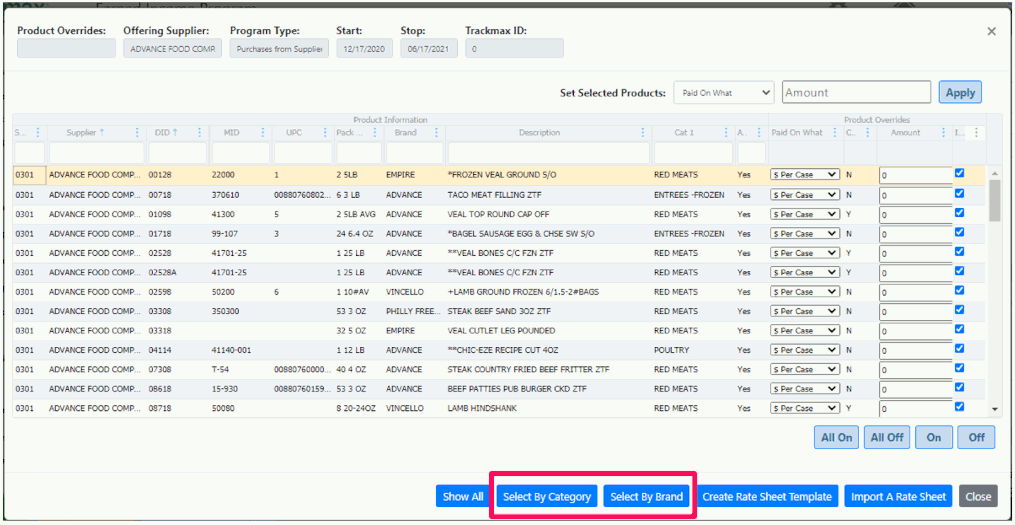
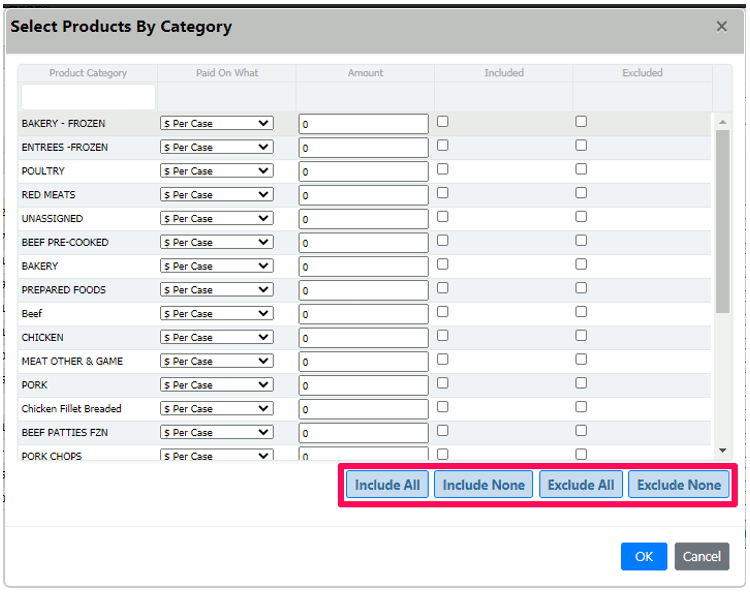
In the Product Overrides screen of program setup, new options are available to Include All/Include None and Exclude All/Exclude None when selecting items by Brand or Category. This applies to both Earned Income and Customer Incentive Programs and allows for easy inclusion and exclusion of brands and product categories. Once a category/brand has been excluded, the items included in that category/brand will be greyed out when viewing the main product overrides list.
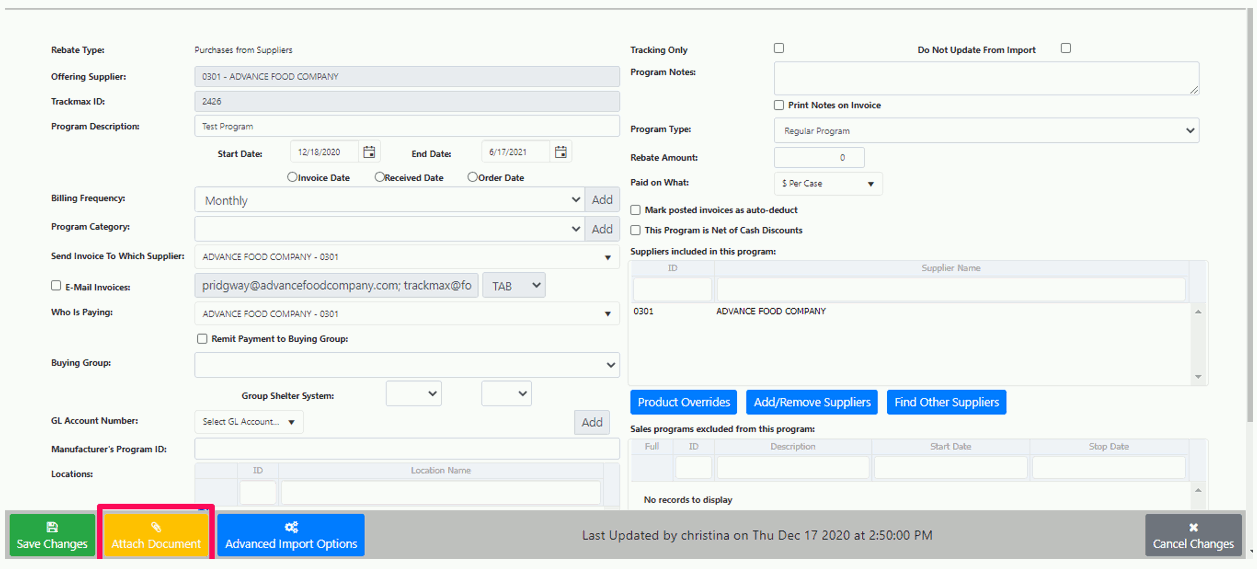
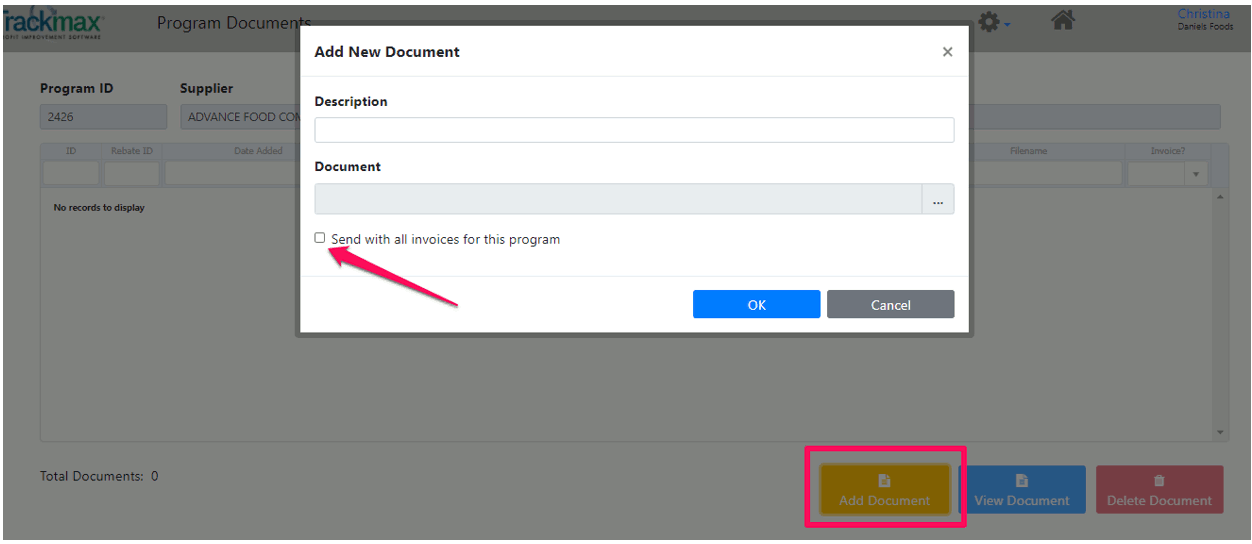
During program setup, users can now choose to send documents that are attached to programs with invoices to suppliers when doing billings. After the program has been created and/or saved, choose “Attach Document” at the bottom left. Choose “Attach Document” again on the following screen and a new box opens up with the option to “Send with all invoices for this program”.
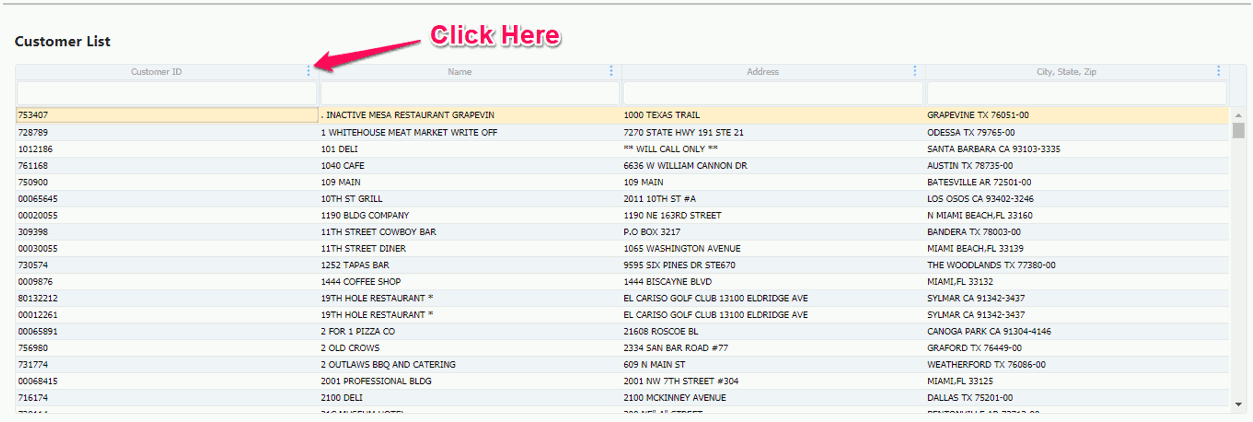
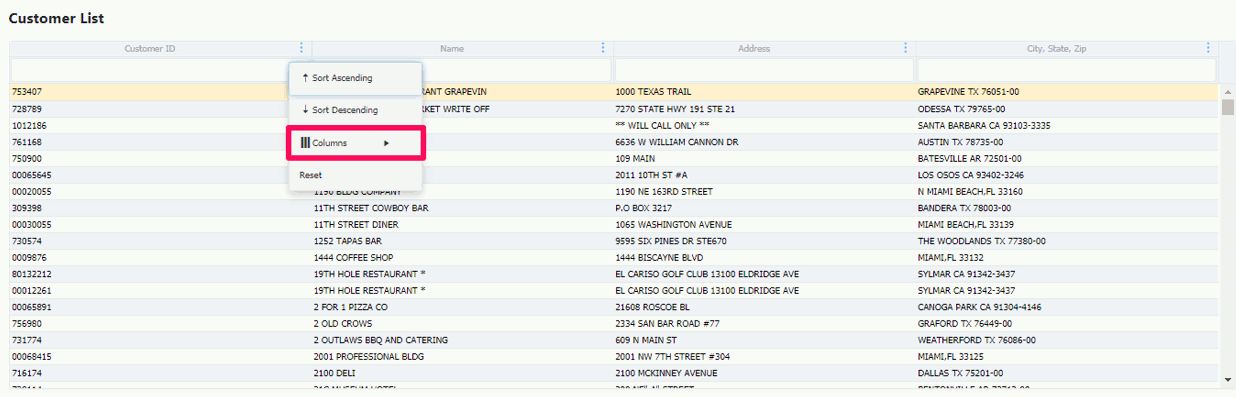
More grids in Trackmax (Show Customers, Statements, Payments, etc.) now have additional columns that can be viewed by users. This option is indicated by 3 dots in the column header. To view the additional columns, click on those 3 dots and choose the third option, “Columns”. This will pop open a side window of all columns available to the current grid where users can use the check boxes to add/remove (un)necessary columns. These are user specific preferences and Trackmax will save these options until the user’s cache is cleared in the browser.
There is now a feature in place for times when items switch from non-catchweight to catchweight and vice versa. A catchweight indicator on the individual sales record will determine if the cost of the item will be calculated using the weight or the quantity which will prevent historical costs from being recalculated when the item switches to a new setup. In the past, Trackmax always looked back to the catchweight indicator on the product. This was problematic if an item switched back and forth as history records based on the indicator being the opposite setting would now show incorrectly. By looking to a catchweight indicator based on the individual sale, we no longer impact history.
For example, item #12345, 1/10# block of cheddar cheese, has historically been an item you buy and sell by the case with an FOB cost of $25.50/case. You have sold 150 cases between 7/1 and 7/15 making your total cost of goods sold, $25.50/case*150 cases = $3,825. Mid-July the item switches to catchweight and you sell 1815 pounds from 7/16-7/31 and your cost changes to $2.45/lb. The cost of goods sold value for 7/16-7/31 is $2.45/lb*1815lbs = $4,446.75. Your total cost of goods sold for the month of July will be $3,825 + $4,446.75 = $8,271.75.
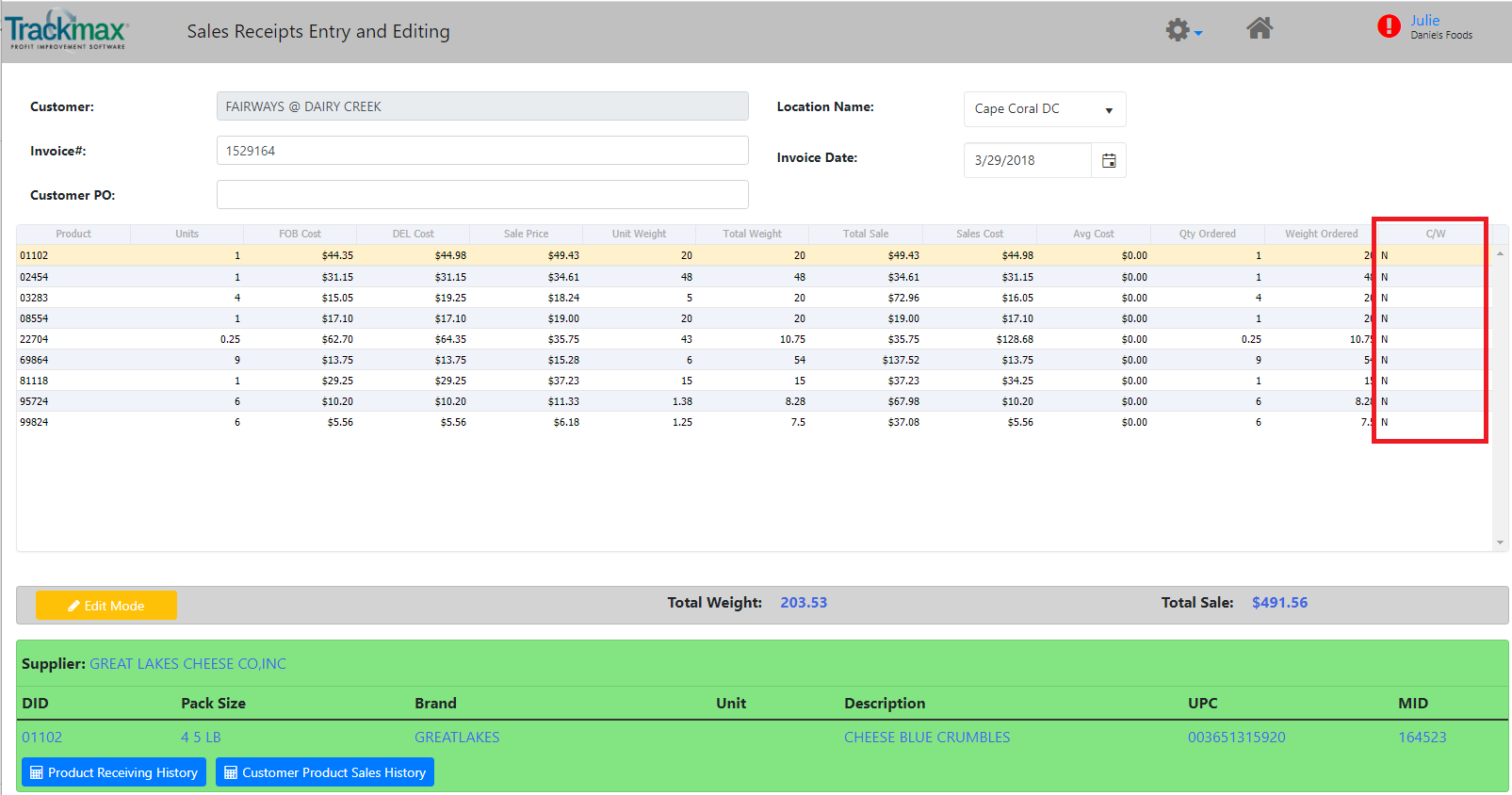
The catchweight indicator on the sales receipt will be visible in Trackmax. If you go to the Sales Receipts Entry and Editing screen for an individual Sales Receipt, you will see the C/W Indicator in the far right column. If needed, you have the ability to edit this value by clicking the Edit Mode button at the bottom of the screen and adjusting the value from either N to Y or Y to N.
To have your version of Trackmax look to this new indicator, you must contract Trackmax Support to have it set up. In addition, you should verify that you are correctly and accurately providing the appropriate flag on the Sales Records you are sending us. The field to check would be Field 26 in the J Records. Trackmax Support can help you determine what you are sending and if it is correct.
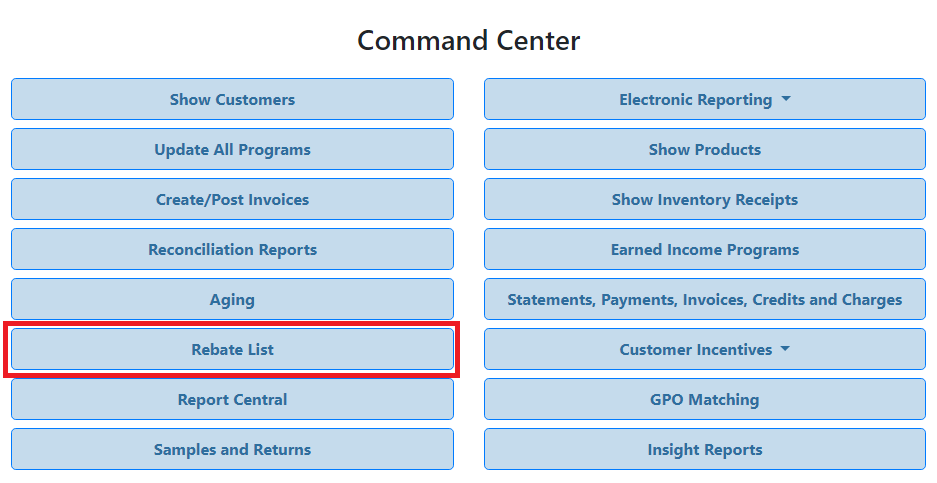
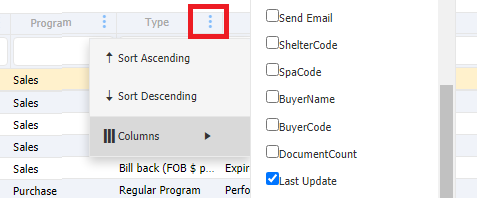
We added new column to Rebate List called “Last update date”. Can be added by customizing the columns.
A new “Paid on What” option to set up a sales-based program based on unit price, rather than case price is now available. The rest of the program setup (i.e. Paying Supplier, Locations, Products, Customers, etc.) is the same as current sales-based programs setup.
Click here to watch a demo video further explaining this functionality.
We also added Units Per Case to Product Overrides Column Options so that you can see the Units assigned in program setup.
Changed Aging Report and Mini Statements to only go out 2 decimals for all money values.
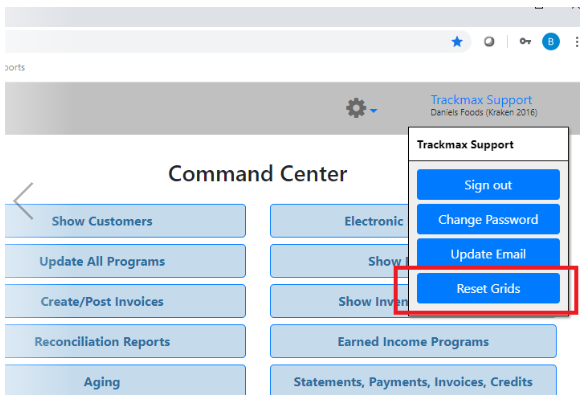
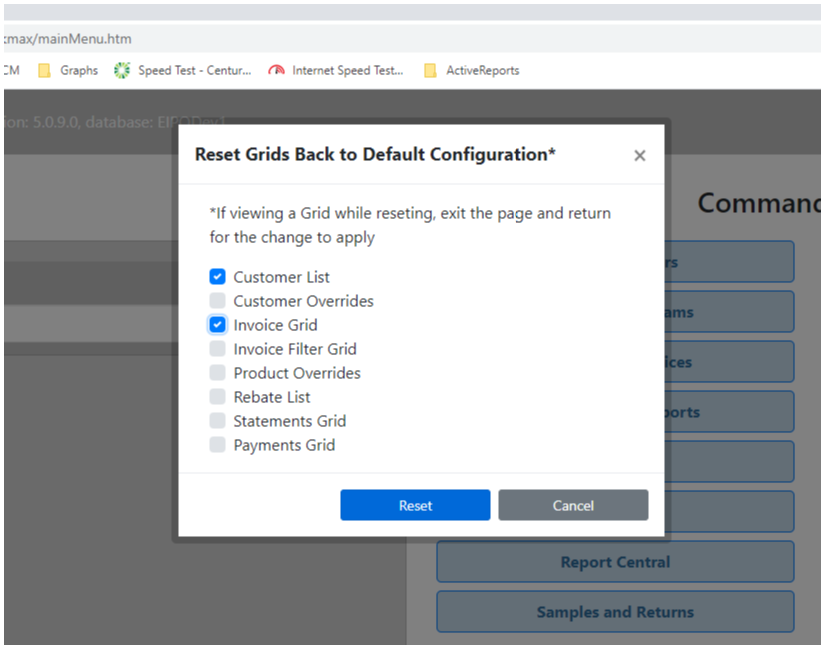
There are now more “grids” within Trackmax where you can add/remove columns, as you can in Product Overrides, for example. These new locations include the Customer, Statements, and Payments screens. Trackmax will save any columns you add, remove, or resize but if you need the screen to go back to the original settings, we have a “Reset Grids” button available in the menu that pops up after clicking on your name in the top right hand corner of Trackmax. From there you will get a list of grids where you can choose which one(s) you would like to reset.